Aperture User Guide

Import
Aperture supports adding multiple MAPP 3D files in the same view.
The origins of the MAPP 3D files will have to be in different places; otherwise, they will overlap.
To remove a MAPP 3D file before importing the same file again, refresh the Aperture page; otherwise, it will be added on top.
GALAXY processing saved in the MAPP 3D file will be loaded and applied.
DXFs will be imported, but SKP files are not supported.
Prediction plane offsets are not supported.
Important
In some rare cases, Aperture may return different rigging results compared to MAPP 3D or MAPP XT. If any software shows a failure of Factor of Safety, do not proceed with that array configuration.
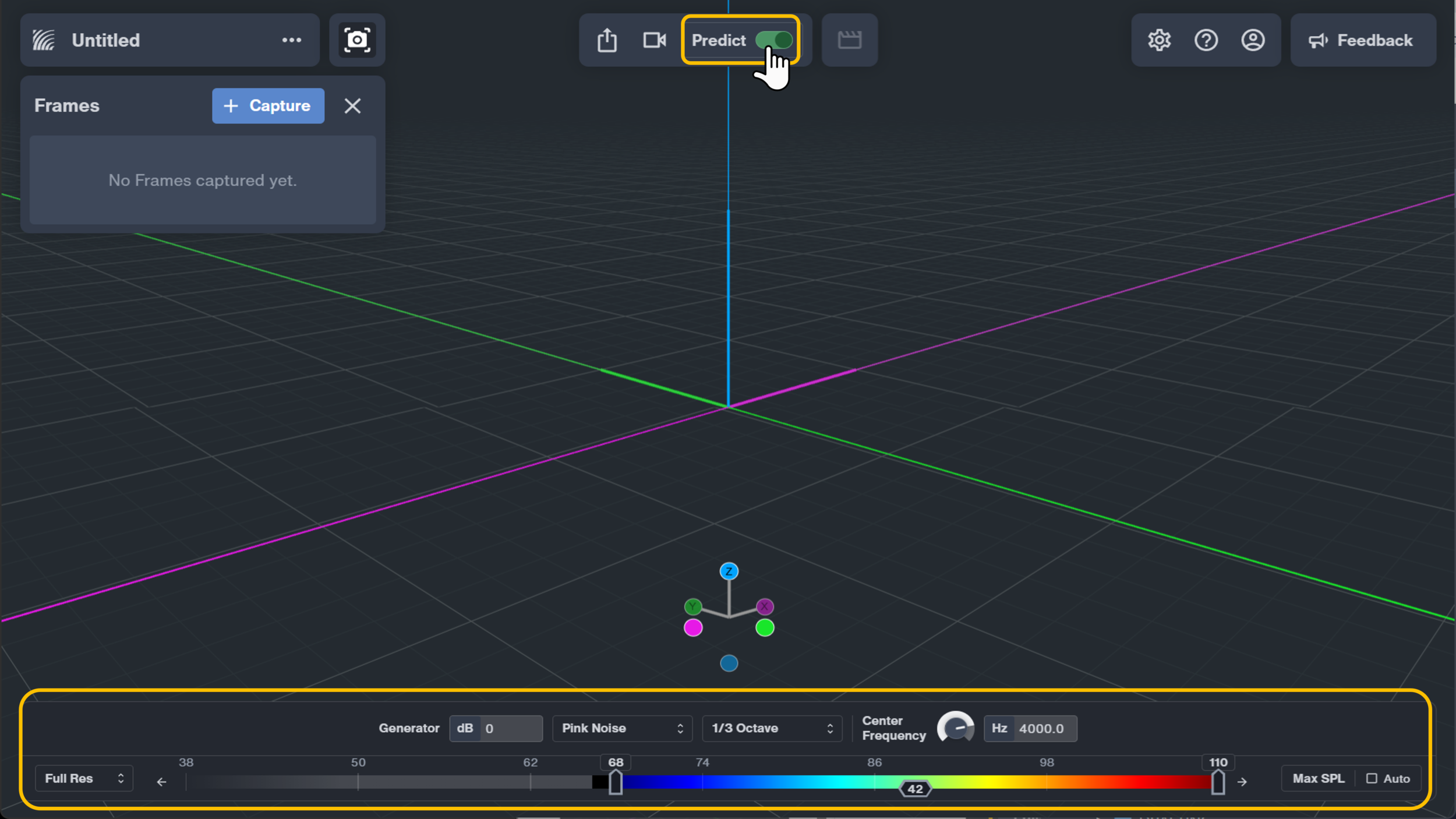
Enable Predict
With a project loaded into Aperture, enable Predict.
Predict turns on all of the prediction surfaces created in MAPP 3D.
All surfaces will be live all the time so Predict does not need to be toggled on and off.
Predict setting include:
SPL range
Width of the SPL range
Center Frequency
Full Res
Export
There is an export menu in the top sidebar; this allows you to export information from Aperture.
For screenshots, a dialog will appear, and frames can be selected to be exported
Multiple frame selection will export as a .zip folder with each frame as a separate image.
Different settings can be set in the dialog; these will be applied to the screenshots only.
Save
Since Aperture runs in a browser, saving packs the project into a file and downloads it to the computer.
Chrome downloads files to the Downloads folder by default.
Aperture names the file using the project name shown at the top right. To choose a save location or rename the file in Chrome:
Open the three-dot menu and select Settings.
Select Downloads.
Enable Ask where to save each file before downloading.